Trade Hall
Trade Hall in Minecraft is usually a player-built structure which is easy to navigate and consists of traded villagers with useful offers. Such setups are often used by experienced players to organize efficient resource exchange, such as:
- selling abundant materials from various farms
- buying a big amount of materials for building
- having a collection of librarian villagers offering every kind of enchantments
LibrGetter is already a very helpful tool for quickly cycling librarian trades, yet the new Trade Hall management system takes it one step further and creates a way to have a structured overview of your librarian trade halls.
LibrGetter automatically saves enchantment book trades and lectern coordinates into an internal list. This happens in one of two ways:
- When the librarian’s trades are locked by the LibrGetter process, the list of matched enchantments and the position of the selected lectern are saved
- When the player interacts with a traded librarian, the list of all offered enchantments and the position of the lectern closest to the villager are saved
The list is saved per-world or per-server and per-dimension in a file named tradehall.json.
Server IPs are saved as <sanitized IP>.<base64 encoded IP>.
Similarly, dimensions are saved as <sanitized dimension name>.<base64 encoded name>.
The locations are as follows:
- If in singleplayer, the file will be saved inside a folder
librgetter-dimension-configinside the dimension save folder inside the world save folder, e.g.:- before
26.1under<minecraft>/saves/New World/DIM-1/librgetter-dimension-config/tradehall.json - after
26.1under<minecraft>/saves/New World/dimensions/minecraft/the_nether/librgetter-dimension-config/tradehall.json
- before
- If on a server, the file will be saved inside the
librgetter-server-config/<ip>/<dimension>folder, e.g. under<minecraft>/librgetter-server-config/play-friends-smp-net.cGxheS5mcmllbmRzLXNtcC5uZXQ/minecraft-the_nether.bWluZWNyYWZ0OnRoZV9uZXRoZXI/tradehall.json
You can edit this file manually with any text editor, but make sure to follow the correct JSON format and to edit the file while Minecraft is closed to avoid any issues.
Trade Hall Screen
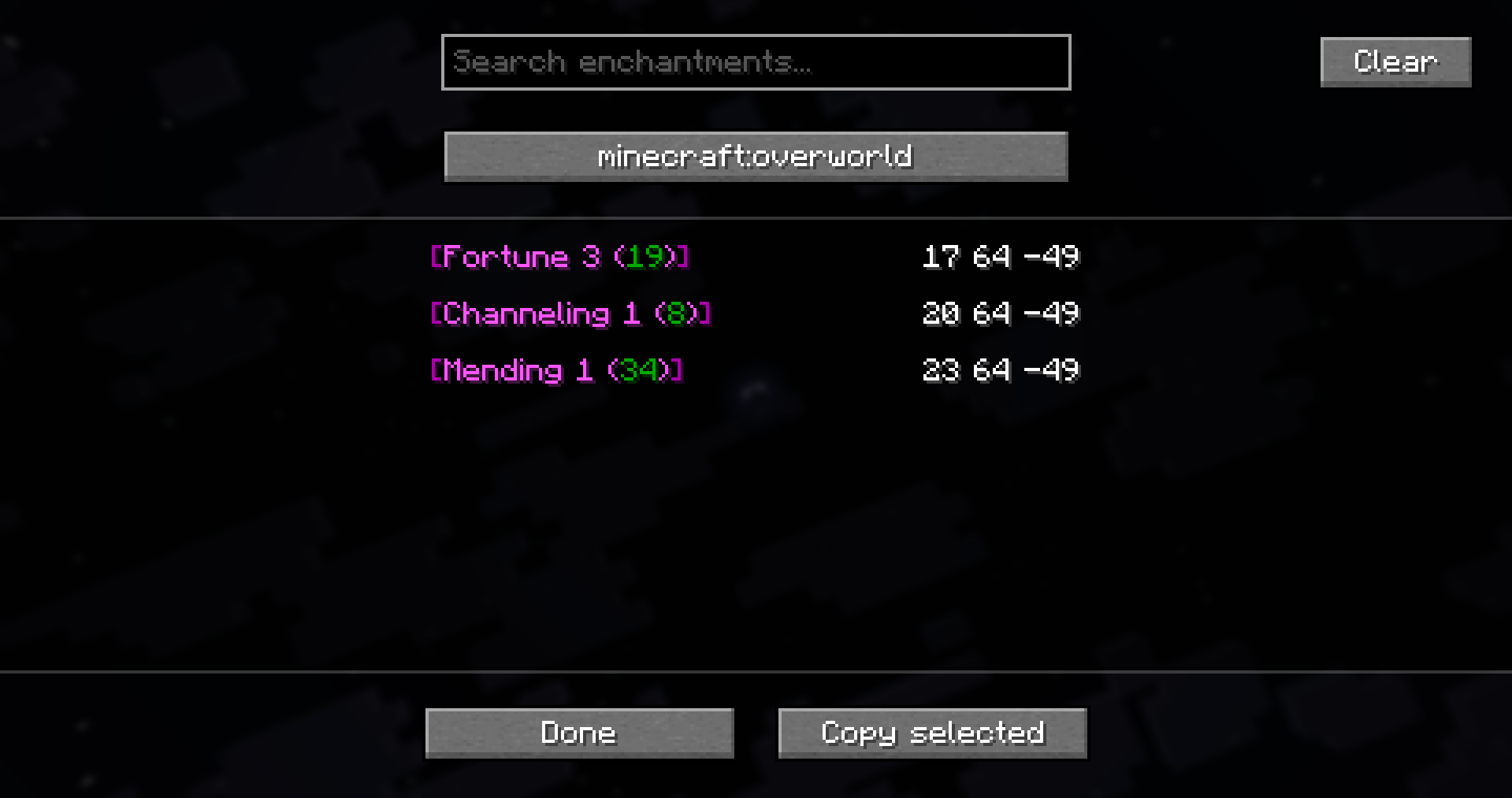
You can open the Trade Hall screen by pressing . (period) key in the game. This screen allows you to view all the saved workstations, delete them or copy the saved lectern coordinates. The keybind may be not present on your keyboard, and it is recommended to change it in the “Controls” menu.
After opening the Trade Hall screen, you will see all the workstations that were automatically added. You can scroll through the list and navigate it with both mouse and keyboard.
To delete an entry, select it with the mouse and press the Delete key on your keyboard.
To copy lectern coordinates, select the right entry and click on the Copy selected button
on the bottom right of the screen. The coordinates will be copied as <x> <y> <z> and can, for example
be pasted into Xaero’s Waypoints screen for navigation.
You can type in the Search enchantments... textbox to filter or search for specific enchantments.
You can look through all saved workstations in each dimension of the current world or server. To change the currently viewed dimension, click on the dimension button under the search box.