Goals
ℹ️ Note
A new GUI for goals management has been implemented inv3.2.0!While all list modifications can now be done through the GUI, it is still recommended to read this page to understand how goals work and what are the differences between Minecraft enchantments and custom enchantments.
The goals list is shared between both the command interface and the GUI.
Goals in LibrGetter represent the enchanting books that you want to obtain from
librarian villagers. Each goal consists of an enchantment ID (e.g. minecraft:efficiency),
a level (e.g. 5), and the price limit in emeralds (e.g. 32). Interactions with goals
list described on this page happen through a client-side game-command.
The goals list is saved per-world or per-server in a file named goals.json.
Server IPs are saved as <sanitized IP>.<base64 encoded IP>.
The locations are as follows:
- If in singleplayer, the file will be saved inside a folder
librgetter-world-configinside the world save folder, e.g. under<minecraft>/saves/New World/librgetter-world-config/goals.json - If on a server, the file will be saved inside the
librgetter-server-config/<ip>folder, e.g. under<minecraft>/librgetter-server-config/play-friends-smp-net.cGxheS5mcmllbmRzLXNtcC5uZXQ/goals.json
You can edit this file manually with any text editor, but make sure to follow the correct JSON format and to edit the file while Minecraft is closed to avoid any issues.
Custom Enchantments
Custom Enchantment IDs
LibrGetter uses enchantment IDs registered on the client for auto-completion by default. This means, that LibrGetter will recognize enchantments from most mods, as long as they are registered on the client. However, some server-side mods and plugins may add enchantments that are not registered on the client, which can lead to the user not being able to add goals for those enchantments. To solve this issue, LibrGetter provides a possibility to enter custom enchantment IDs. It is user’s responsibility to ensure that the custom enchantment IDs are correct and correspond to the enchantments available on the server.
Custom IDs have to be typed in quotes, e.g. "modid:enchantment_name" while
IDs registered on the client can be typed without quotes and will be auto-completed,
e.g. minecraft:efficiency.
💡 Tip
In the following documentation, enchantments registered on the client will be referred to as “Minecraft enchantments”, while enchantments that are not registered on the client will be referred to as “custom enchantments”.
Custom Levels
Similar to custom enchantment IDs, you can also enter custom levels for your goals. This is useful for enchantments that have levels higher than what is registered on the client.
In some commands you might omit the level for your goal to use the highest level available for that enchantment. However, if an enchantment is higher level than what is registered on the client, you will have to enter the level manually as a custom level.
To do so, you don’t have to use quotes, but you have to make sure that the entered level can actually be obtained from the librarian villagers on the server.
Enchantment Tags
Starting with 1.19.3, enchantment tags were introduces in Minecraft.
Enchantment tags are a way to group enchantments together, which can be useful for goals
management. You can use enchantment tags registered on the client to add or remove multiple
enchantments at once.
Starting from 1.19.3, LibrGetter automatically recognizes enchantment tags such as
#minecraft:treasure registered on the client and allows you to use them in commands.
Before 1.19.3, enchantment tags are not available.
Warnings
When adding a goal, LibrGetter will check for multiple things:
- Does the enchantment exist at all?
- Is the enchantment tradeable by the librarian villagers?
- Is the level of the goal valid for the enchantment?
When any of these checks fail, LibrGetter will display a warning message in the chat, but it will still add the goal to the goals list. This is because sometimes you might want to add a goal that doesn’t meet these criteria, e.g. because you know that the enchantment or a higher level of the enchantment is available on the server even though it’s not registered on the client.
These warnings can be configured in the config. More info: Config | Warning
Adding Goals
You can add a new goal using the command:
/librget add <enchantment_id> <level> <price_limit>
or
/librget add "<custom_id>" <level> <price_limit>
In both cases, you can omit the price limit. It will default to the highest price limit of 64 emeralds.
Adding Minecraft Enchantments
When adding a Minecraft enchantment to the goals list, you can omit the level to use the highest level available for that enchantment. e.g. running
/librget add minecraft:efficiency
will add a goal with
id = minecraft:efficiency
level = 5
price = 64
Adding Custom Enchantments
When adding a custom enchantment, you have to enter the level, since the client doesn’t know what the highest level for that enchantment is. e.g. running
/librget add "modid:enchantment_name" 3 56
will add a goal with
id = modid:enchantment_name
level = 3
price = 56
Adding Enchantment Tags
When adding an enchantment tag, you can omit the level to add all enchantments with the highest level available for each enchantment in that tag. e.g. running
/librget add #minecraft:exclusive_set/boots
will add 2 goals:
id = minecraft:depth_strider
level = 3
price = 64

id = minecraft:frost_walker
level = 2
price = 64
If you enter a level when adding an enchantment tag, the same level will be applied to all enchantments in that tag. e.g. running
/librget add #minecraft:exclusive_set/boots 1
will add 2 goals:
id = minecraft:depth_strider
level = 1
price = 64

id = minecraft:frost_walker
level = 1
price = 64
The price limit will apply to all enchantments in the tag and all enchantments are going to be added with the same price limit. Either the default one of 64 emeralds or the one you entered in the command.
Changing Goals
When adding a goal with the same enchantment ID and level as an existing goal, the new goal will replace the existing one. This is useful for changing the price limit of an existing goal. e.g. if you have a goal with
id = minecraft:efficiency
level = 5
price = 32
and you run the command
/librget add minecraft:efficiency 5 54
the goal will be updated to
id = minecraft:efficiency
level = 5
price = 54
Removing Goals
You can remove an existing goal using the command:
/librget remove <enchantment_id> <level>
or
/librget remove "<custom_id>" <level>
When removing a goal, you can omit the level to remove all goals with the same enchantment ID regardless of their level.
When removing an enchantment tag, omitting the level will remove all goals with enchantments in that tag regardless of their level. When specifying a level, only goals with enchantments in that tag and with the specified level will be removed.
Clearing Goals
You can remove all goals at once using the command:
/ibrget clear
Listing Goals
You can list all your goals using the command:
/librget list
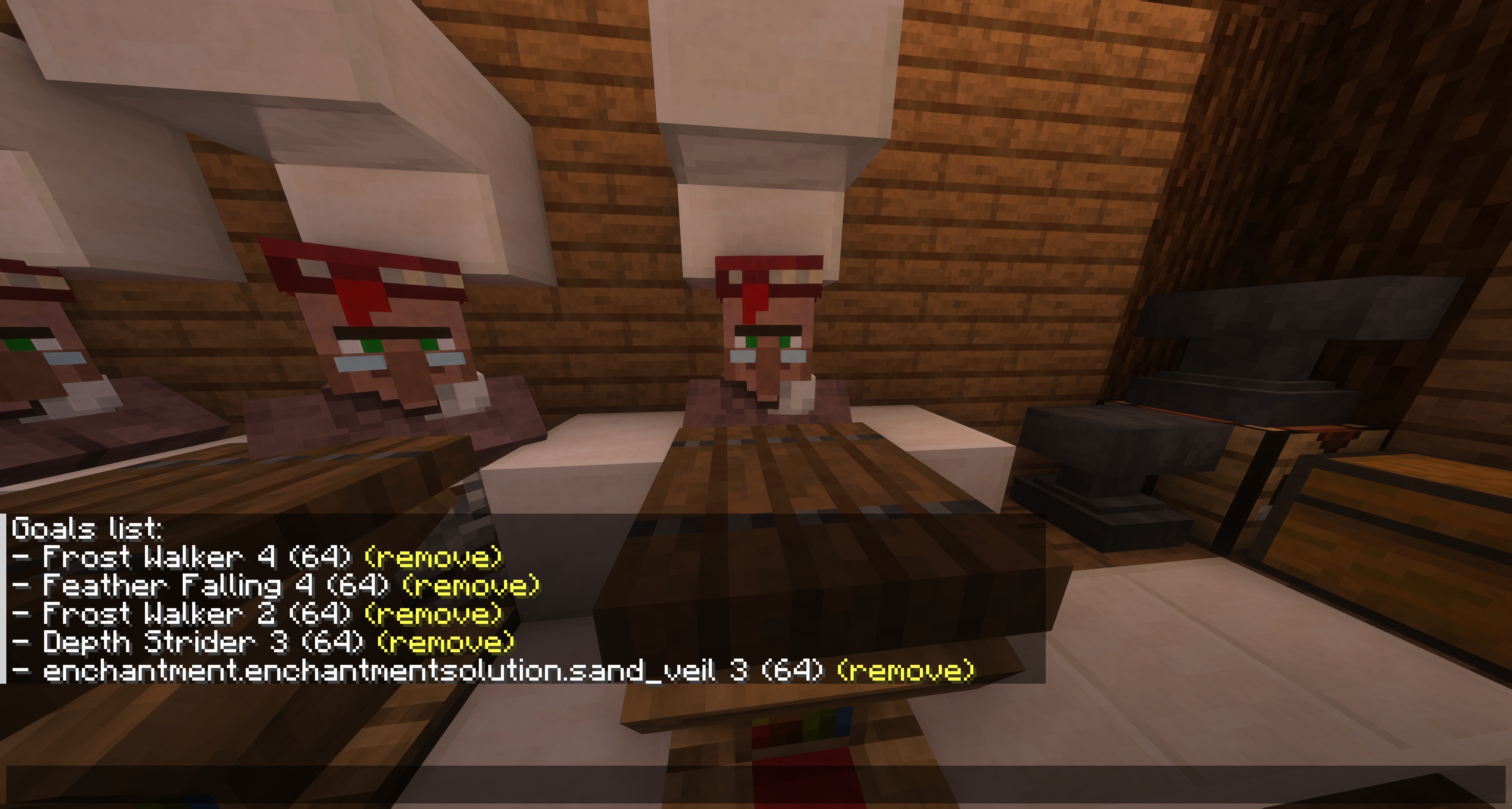
Each goal will be displayed in the chat with its enchantment ID, level, price limit and a “remove” button, which you can click to quickly remove the goal without having to type the command for it.
Automatic Goal Removal
In addition to manual management of goals through commands, there is a config option to automatically remove goals from the goals list when they are obtained from the librarian villagers. More information about this option can be found in the config documentation: Config | Remove Goal