Config
The config is the core of LibrGetter’s flexibility. It allows you to customize various aspects of mod’s behavior, such as modifying the process, adjusting the messages displayed in the chat and much more.
The config is stored in a file named config.json located in the config/librgetter folder of your Minecraft
directory. You can edit this file manually with any text editor, but make sure to follow the correct JSON
format and to edit the file while Minecraft is closed to avoid any issues.
However, editing config manually is rarely needed, as all the config options can be changed in-game with commands and a handy config GUI.
Managing Configs With Commands
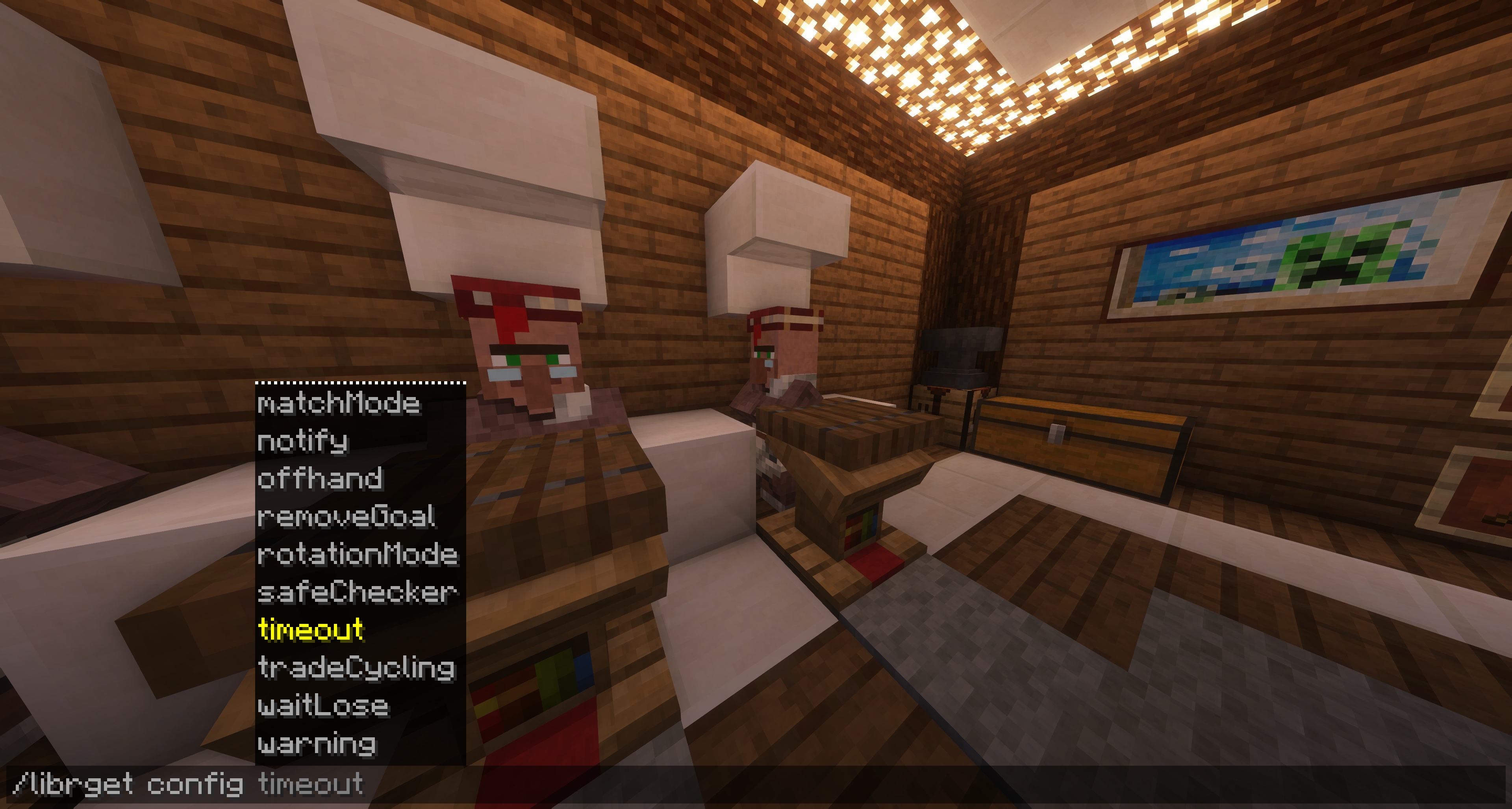
All config options can be managed in-game with the command /librget config.
- To see the currently set value for a config option, simply
type
/librget config <config name> - To change the value of a config option,
type
/librget config <config name> <new value>
Note, that most configs can be changed while the process is running, while a few others can’t and require you to stop the process before changing them.
Config GUI
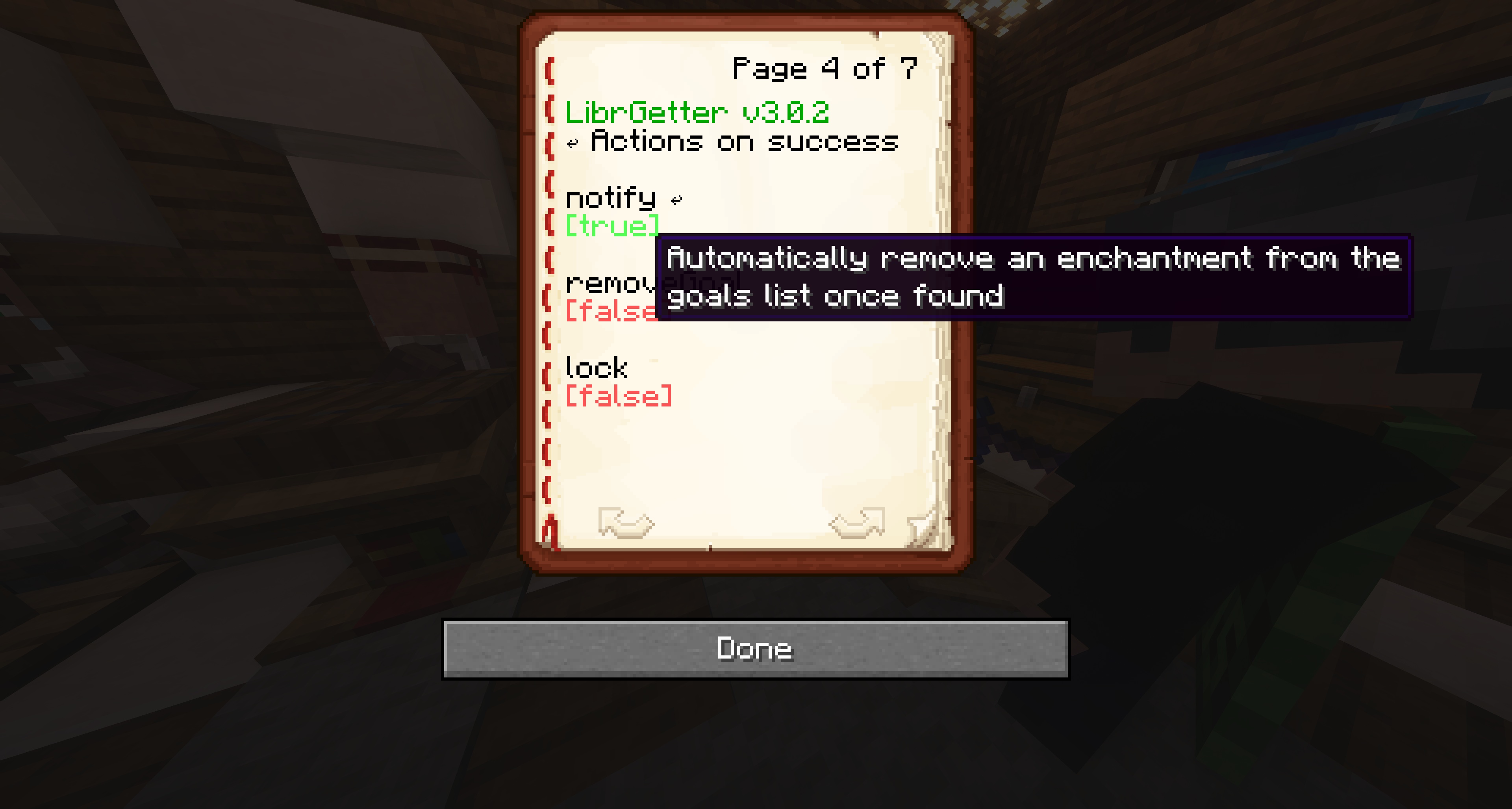
The preferred way of managing configs is through the in-game GUI. The GUI provides a user-friendly interface for changing config options, seeing the currently set values and get visual feedback on what each config option does. To open the config GUI, use the keybind K.
The GUI looks like a vanilla Minecraft written book. Each page of the book contains different config options, with their name, description, current value and buttons that you can click to change the value.
On the first page you’ll see a list of config categories. Clicking on them will navigate you to the page with config options from that category. You can navigate back to the categories list with the ↩ button at the top of each page.
Each page starting with the second one contains a list of config options. Each option is displayed in the same way:
<config> <reset button>
<toggles>
Hovering your mouse over the config will display a tooltip with a description of what the config does and how to use it.
You can click on the toggles to change the value. If the config is not set to the default value, the reset button ↩ will appear next to the name, which you can click to reset the config to its default value.
In some cases, the config option will be grayed out. This means that this config option currently is not effective, and changing its value won’t have any effect until you change some other config option. You can still hover over it to see the tooltip and can even change the value.
Config Categories
Config options are divided into categories to make it easier to find the one you are looking for and to provide a better overview of the available options. Each category contains config options related to a specific aspect of LibrGetter’s behavior. Here is a list of all available categories and a brief description of what they contain:
- Process - configs related to the process of obtaining the enchanting books, such as changing the behavior of the process and how it interacts with the game
- Success - configs related to what happens when you obtain a desired enchantment, such as playing a sound or automatically locking the trade
- Messages - configs related to various messages displayed by LibrGetter
- Matching - configs related to how LibrGetter matches the obtained enchantments with your goals, such as allowing partial matches or having a custom matching algorithm
- Trade Hall - configs related to trade hall management
- Compatibility - configs related to compatibility with other mods
In following sections you can find a detailed description of each config option available in each category.
Process
💡 Tip
More about the process of finding an enchantment: Process
Auto Tool
Enable/disable automatic tool selection.
| Config | autoTool |
| Values | true, false |
| Default | true |
| Only Effective | when manual = false and tradeCycling = false |
| Changing | cannot be changed while running |
When true: each time before breaking a lectern, LibrGetter chooses the most efficient tool that has more than 10 durability points to break the lectern, and switches to it. If no such tool is found, no tool will be picked.
When false: LibrGetter remembers which tool you are holding when starting the process and switches to exactly this tool each time before breaking. If holding nothing or a non-tool item, no tool will be picked.
Offhand Lectern
Enable/disable putting the lectern in the offhand for higher efficiency.
| Config | offhand |
| Values | true, false |
| Default | false |
| Only Effective | when manual = false and tradeCycling = false |
The process becomes a bit more efficient if you don’t have to switch slots in order to place the lectern.
ℹ️ Note
You will need to have more than one lectern in your inventory in order to increase efficiency.
ℹ️ Note
If you place the lectern in the offhand yourself, it will remain there regardless of this config.
Manual Mode
Enable/disable manual mode.
| Config | manual |
| Values | true, false |
| Default | false |
| Only Effective | when tradeCycling = false |
| Changing | cannot be changed while running |
Manual mode disables the automatic breaking and replacing of lecterns as well as trade locking and clicking the librarian for you, and gives you more control about the functionality. Even though automatic clicking is disabled, you will have to just click the villager but the trades will be automatically parsed and the merchant screen will be automatically closed, reducing the time spent on each cycle to move the mouse and identify the offered trades.
When enabled, upon finding an enchantment from the goals list, the mod will switch to a
state, where you can not break any lecterns - to finish the process you will have to use /librget stop or press
J.
This mode is recommended for players who want to have more control over the process, or for those who are playing on servers with strict rules or AntiCheats, where the automatic breaking and placing of lecterns may trigger them.
Wait Profession Lose
Enable/disable waiting for the librarian to lose profession.
| Config | waitLose |
| Values | true, false |
| Default | false |
| Only Effective | when tradeCycling = false |
Villagers will usually update the profession, when the lectern is replaced. Although, in some situations, server-side lag may be so high, that this doesn’t happen. If you experience lags, this option is recommended to be turned on.
The waiting mode will slow down the process by around 1-2 ticks without lag, but will guarantee, that the villager updates its profession. When manual mode is enabled, during this waiting the placing of the lectern is disabled on the client.
Safe Checker
Enable/disable the safe checker.
| Config | safeChecker |
| Values | true, false |
| Default | true |
| Only Effective | when tradeCycling = false |
Checks if the villager could interfere with the placing process by running over the lecterns position. If the villager is inside a vehicle, the test returns safe by default.
Timeout
Time in seconds to wait for a villager to update its profession before replacing the lectern again.
| Config | timeout |
| Values | integers from 0 to 20 |
| Default | 0 |
| Only Effective | when tradeCycling = false |
If set to 0, this option is disabled. If set to any other number, LibrGetter will hang in a state,
where it waits for the villager to accept the librarian profession for the specified amount of time in seconds,
until it reaches the timeout, then it will break and replace the lectern again. When manual mode is enabled,
the lectern is to be replaced manually
Rotation Mode
How to change head rotation between breaking the lectern and talking to the villager.
| Config | rotationMode |
| Values | NONE, INSTANT, SMOOTH |
| Default | INSTANT |
| Only Effective | when manual = false and tradeCycling = false |
- NONE - don’t change head rotation; may trigger AntiCheats
- INSTANT - rotate the head instantly; should bypass most simple AntiCheats
- SMOOTH - imitate natural player head rotation; slows down the process drastically but should bypass even some advanced AntiCheats
Particles
Enable/disable spawning particles on the selected villager and lectern for visualization.
| Config | particles |
| Values | true, false |
| Default | true |
When enabled, LibrGetter will spawn magenta dust particles on the selected villager and lectern for visualization. This can be useful to see if the selection is correct, especially if using the automatic selection or the Trade Hall mode.
When disabled, no particles will be spawned.
Success
Notify
Enable/disable sound notification when finding an enchantment.
| Config | notify |
| Values | true, false |
| Default | false |
Lock Trades
Enable/disable locking the trades after match.
| Config | lock |
| Values | true, false |
| Default | false |
| Only Effective | when manual = false |
In order to lock a trade you will need to have one of the following inventory configurations:
- 24 paper to sell and 9 emeralds to buy a bookshelf
- 1 book and an amount of emeralds equaling to the most expensive expected book
Remove Goal
Enable/disable removing the goal from goals list when being found.
| Config | removeGoal |
| Values | true, false |
| Default | false |
When false: when an enchantment is found, the “remove” button will appear in the message.
When true: the goal will be automatically removed from the goals list with a regular removal message, and the “remove” button won’t appear in the message.
Messages
Log Mode
Where to log found enchantments.
| Config | logMode |
| Values | NONE, CHAT, ACTIONBAR |
| Default | CHAT |
- NONE - don’t log anywhere
- CHAT - log in the client chat
- ACTIONBAR - log into the actionbar
Check Update
Enable/disable checking if a new update has been released.
| Config | checkUpdate |
| Values | true, false |
| Default | true |
When enabled, an update message will appear in the chat once on the first world/server join if a new version of LibrGetter has been released.
If you have Mod Menu, it will show you a blue dot whenever a new version is available, regardless of this config.
Warning
Enable/disable warning when custom enchantments format is used.
| Config | warning |
| Values | true, false |
| Default | true |
When enabled, a warning message will appear in the chat each time you try to add a goal that:
- … isn’t registered on the client (e.g. a custom enchantment from a mod or plugin)
- … isn’t registered as traded by villagers
- … has a level that is higher than the maximum registered level for that enchantment
More info about warnings for goals: Goals | Warnings
Matching
Fallback
Fallback option to search for unsupported enchantments.
| Config | fallback |
| Values | true, false |
| Default | false |
Takes all the data given about trades from the villager, convert it to text and search for all enchantment IDs currently in the goals list. It is not guaranteed to make a match, and can cause false positives. May cause lag with a large list of enchantments.
Use only as a temporary solution, if the plugin you are playing with is not supported by LibrGetter yet. In this case, consider opening an issue here with information about the plugin, so that it can be supported in future updates.
💡 Tip
Related topics:
- Support for custom enchantments: Goals | Custom Enchantments
- Compatibility with mods and plugins: Compatibility
Original Price
Match the original/adjusted price.
| Config | originalPrice |
| Values | true, false |
| Default | false |
By default, LibrGetter will match the adjusted price of the enchantment, which is the price after all discounts have been applied, such as Hero of the Village or other effects. When this option is enabled, LibrGetter will match the original price of the enchantment, which is the price before any discounts or adjustments are applied. This can be useful if you want to ensure that other players can also buy the enchantment at the same price, regardless of any discounts they may have (with the exception of negative discounts).
Matching Algorithm
Match Mode
Matching mode to determine when to stop the process of cycling trades and consider the attempt a success.
| Config | matchMode |
| Values | VANILLA, PERFECT, ATLEAST |
| Default | VANILLA |
- VANILLA - the first or the second trade matches the goals list
- PERFECT - all offered trades match the goals list
- ATLEAST - at least N trades must match the goals list, N is given by the
matchAtLeastconfig
Match At Least
Number of unique trades which must match the goals list to consider the attempt a success.
| Config | matchAtLeast |
| Values | Integers from 1 |
| Default | 1 |
| Only Effective | when matchMode = ATLEAST |
If matchAtLeast is greater than the amount of items in the goals list, LibrGetter will use that amount instead.
⚠️ Warning
The search time is expected to grow exponentially with increase of this config
Matching Explanation
The configs matchMode and matchAtLeast allow you to customize the matching algorithm used by LibrGetter to
determine when to stop the process of cycling trades and consider the attempt a success.
If you are running a vanilla setup, then only the VANILLA mode makes sense, since you can only see exactly no or one enchantment trade. With server-side addition of mods such as Visible Traders however, you will be able to potentially see more than just a single enchantment. In this case, you can use the other two modes to make the process more customizable and rewarding.
You’d use the PERFECT mode, whenever you want to get a perfect villager without any wasted trade offers. This means, that all the offered trades have to match the goals list, and if there is even one trade that doesn’t match, the process will continue.
You’d use the ATLEAST mode, whenever you want to effectively find as many enchantments from your goals list as possible, while tolerating wasted trade offers.
Some example scenarios:
- You’d like to get a villager with any matching offer, in other words, you want the villager to have at least
one matching trade offer. Then you’d use
matchMode ATLEASTandmatchAtLeast 1 - You’d like to get a villager with his offers ideally covering the whole goals list at once.
Then you’d use
matchMode ATLEASTandmatchAtLeast NwhereNis the amount of items in your goals list.
Trade Hall
See the whole Trade Hall section for more information about the Trade Hall feature.
Trade Hall Mode
| Config | tradehallMode |
| Values | true, false |
| Default | false |
| Only Effective | when manual = false, lock = true and removeGoal = true |
When enabled, upon finding a matching enchantment on a villager, LibrGetter will search for the next librarian workstation within 7 blocks, find a path and automatically walk there. This will be done until no more goals are present in the goal list or until no more workstations can be found.
For best experience, follow these steps:
- line up all librarians which you want to cycle in your trading hall in a straight line
- remove any obstacles that could block the walking
- avoid complicated paths, as the integrated pathfinder is very lightweight
Note, that the auto-walk feature might be banned on some servers. Consult the admin if not sure. The feature is not safe against anti-cheats and might trigger their detection system.
Trade Hall Scan
| Config | tradehallScan |
| Values | true, false |
| Default | true |
When enabled, LibrGetter will scan the surrounding area for any workstations without a lectern and automatically remove them. The scan happens once every minute (1200 ticks) and scans in the radius of 64 blocks.
Compatibility
This list of configs enables/disables compatibility with different client-side mods, possibly modifying the process of finding an enchantment. All compatibility configs are disabled by default. Compatibility configs are grayed out when the corresponding mod is not installed. You can read more about what each mod changes in the compatibility documentation.
Trade Cycling
Trade Cycling integration
| Config | tradeCycling |
| Values | true, false |
| Default | false |
| Changing | cannot be changed while running |