Goals (GUI)
Goals in LibrGetter represent the enchanting books that you want to obtain from
librarian villagers. Each goal consists of an enchantment ID (e.g. minecraft:efficiency),
a level (e.g. 5), and the price limit in emeralds (e.g. 32). Interactions with goals
list described on this page happen through an in-game GUI.
Please also read the Goals page to understand how goals work and what the differences between Minecraft enchantments and custom enchantments are.
⚠️ Warning
The GUI is fully supported in newer versions of Minecraft, but it may have minor placement and scaling issues in older versions. It is not recommended to resize the game window while the GUI is open, as it may cause some visual glitches on older versions. To fix such issues, simply close the GUI and open it again.
Goals List Screen
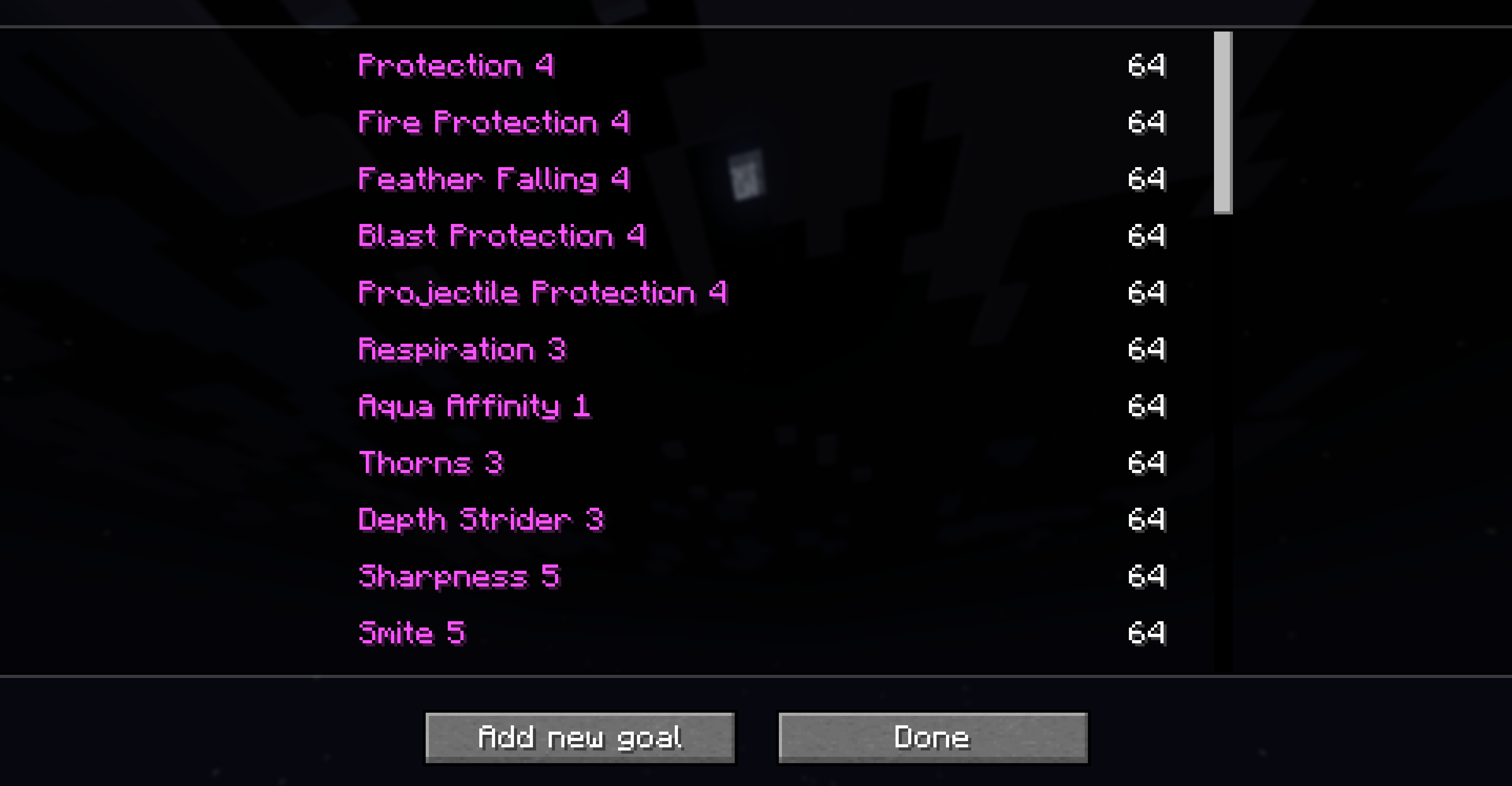
You can open the goals list screen by pressing , (comma) key in the game. This screen allows you to view all your goals, add new goals and delete goals. The keybind may be not present on your keyboard, and it is recommended to change it in the “Controls” menu.
After opening the goals list screen, you will see all the goals that you have previously added. You can scroll through the list and navigate it with both mouse and keyboard.
To delete an entry, select it with the mouse and press the Delete key on your keyboard.
To add a new entry, click the Add new goal button at the bottom of the screen. This will open a new “Select Enchantment” screen.
To save the changes, simply close the screen by either clicking the Done button at the bottom of the screen or by pressing the Esc key on your keyboard.
Select Enchantment Screen
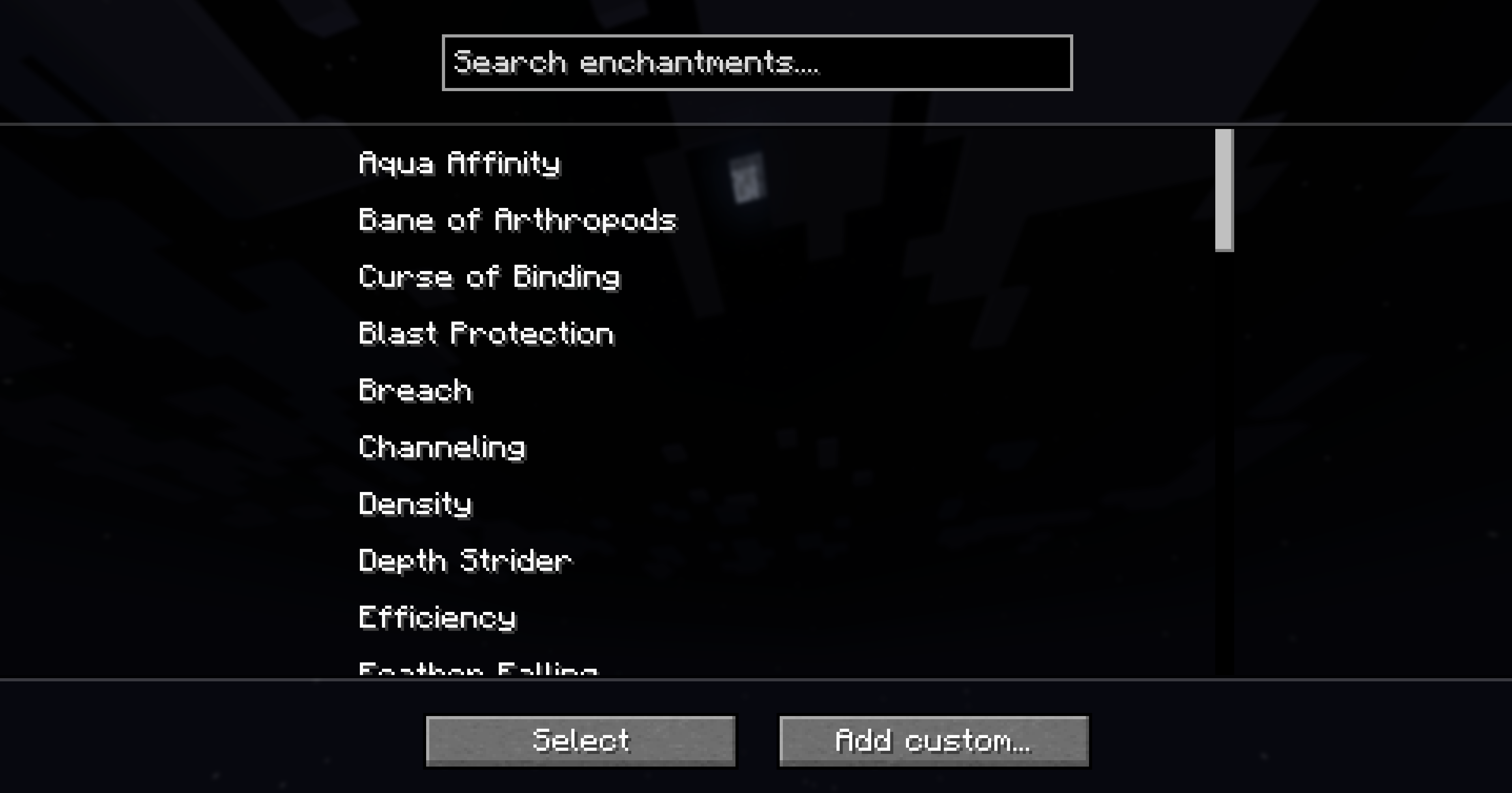
After opening this screen, you will see a searchable list of all enchantments registered on the client. You can scroll through the list and navigate it with both mouse and keyboard.
To find the needed enchantment, focus on the search field at the top of the screen and type the search query. The list will be filtered by comparing your query to both enchantment IDs and enchantment names.
To select an enchantment, select it from the list and click the Select button at the bottom of the screen.
To add a custom enchantment, click on the Add custom... button.
To cancel, close the screen by pressing Esc. You will return to the goals list screen without adding a new goal.
Add Enchantment Screen
In this screen you will see three labeled fields:
- Enchantment
- Level
- Price
If you selected a Minecraft enchantment in the previous screen:
- The “Enchantment” field will be filled with the selected enchantment and become not-editable
- The “Level” field will have a hint with the maximum level of the selected enchantment registered on the client, but it will be editable, allowing you to enter a custom level if needed
If you clicked on the Add custom... button:
- The “Enchantment” field will be empty and editable, allowing you to enter a custom enchantment ID
- The “Level” field will be empty and editable, making it mandatory to enter a custom level
The price field always have a hint with the maximum price limit of 64 emeralds (in Vanilla), but it is editable, allowing you to enter a different price limit if needed.
ℹ️ Note
Compared to the command interface, you shouldn’t use quotes for the custom enchantments in this GUI, just type the ID as it is, e.g.modid:enchantment_name
To save the new goal, click the Add button at the bottom of the screen.
To cancel, close the screen by pressing Esc. You will return to the “Select Enchantment” screen without adding a new goal.