Process
This page describes the general process of how LibrGetter works and how to control it.
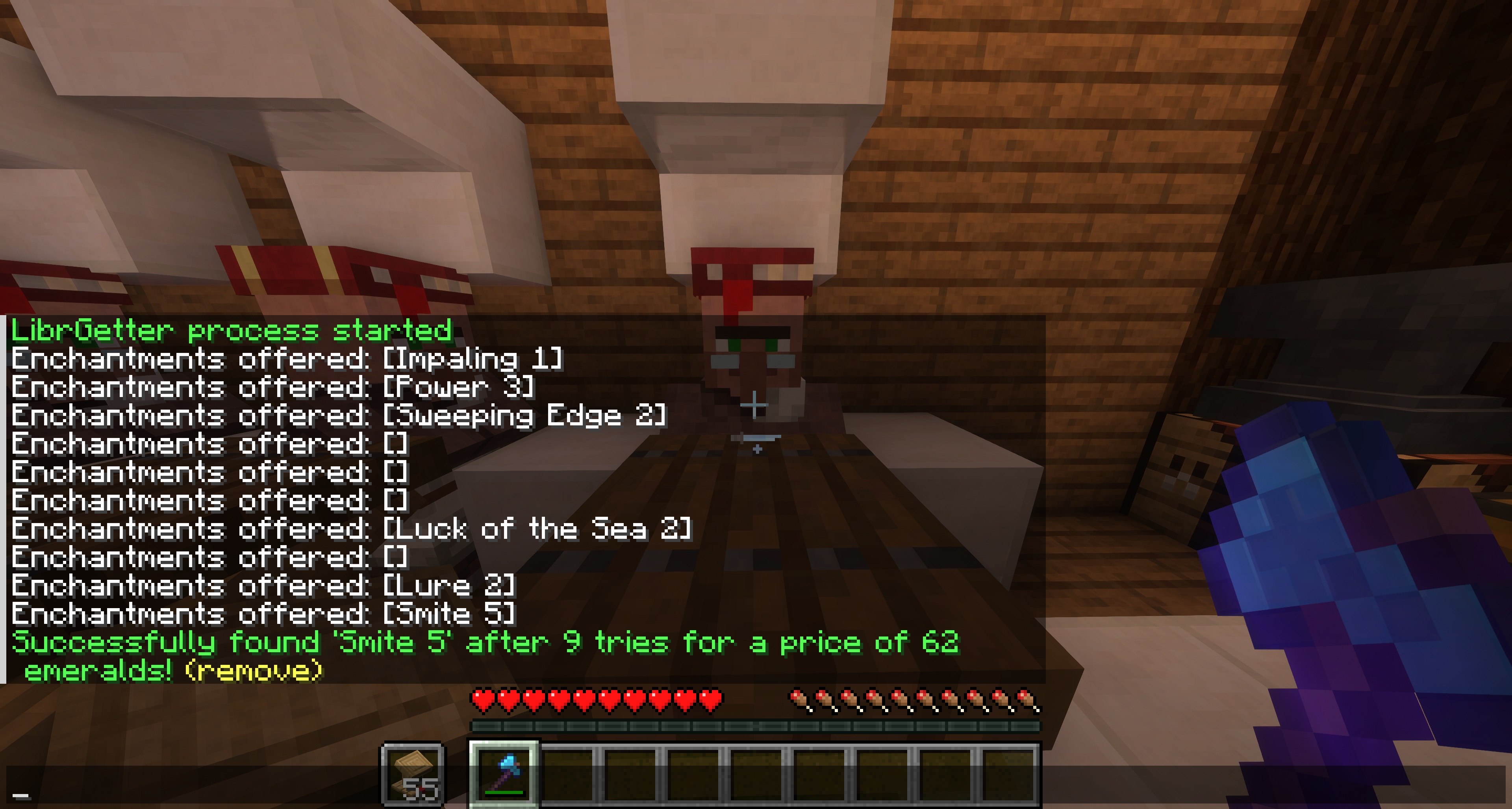
LibrGetter works in cycles. Each cycle follows these steps:
- Obtain the trades offered by the selected librarian villager
- Check them against the goals list (more info: Goals)
- If a trade matches a goal, finalize the searching process
- If no trade matches a goal, refresh the trades and repeat the process
Starting
Before LibrGetter can start working, you have to select a librarian villager and his lectern. If you are playing with the Trade Cycling integration, then selecting the lectern is optional.
The selection process can be done in multiple ways, depending on your preferences and the situation. Here are the available options:
Manual Selection
Using keybinds:
- Face the villager and press H - this will select the villager
- Repeat the same for the lectern, or if you have the Trade Cycling integration, you can skip this step
- Start the process by pressing J
or the same with commands:
- Face the villager and type
/librget- this will select the villager - Repeat the same for the lectern, or if you have the Trade Cycling integration, you can skip this step
- Start the process by typing
/librget start
Note, that the order or selecting the villager and the lectern doesn’t matter, but both of them have to be selected before starting the process (unless Trade Cycling is used). If you start the process without selecting both of them, LibrGetter will display an error message in the chat.
Automatic Selection
When using the automatic selection, you won’t have to select the villager and the lectern manually. Instead, LibrGetter will automatically find the closest villager and lectern to you and use them for the process. Before starting, ensure that you have exactly one librarian villager and one lectern that are closest to you, so that automatic selection picks the correct targets.
To automatically select the villager and the lectern, and then start the process,
press J without having anything selecting yet. Alternatively you can use the command
/librget auto to achieve the same result.
Stopping
The process can be stopped with the same keybind J or the command /librget stop.
Attempt Counter
When using /librget start or /librget auto, you will reset the internal attempt counter to 0
as if you are starting a new search. However, you might have just interrupted LibrGetter
temporarily to do something else and want to continue the search without resetting the attempt
counter. In that case, you can use the command /librget continue to continue the search
without resetting the attempt counter.
To achieve the same with keybinds, you can press J again after stopping the process and after getting back to the same work station where you left off and not changing the villager or the lectern selection. This will confirm, that you want to continue the search on the same villager and lectern without resetting the attempt counter. If you have changed the selection, or you are not at the same work station, pressing J will be treated as starting a new search and the attempt counter will be reset to 0.
Start/Stop Keybind
The keybind J is used for many different actions related to starting, stopping and continuing the process. Here’s a summary of what happens when you press J in different situations:
- If you have not selected both the villager and the lectern, or if the selected villager or
lectern are too far away, the selection is marked as invalid; pressing J with an
invalid selection will automatically select the closest villager and lectern and start the
process; this is the same as using the command
/librget auto - If you have a valid selection that has also been used in the last run, that means that
you are at the same work station, and you have not changed the selection; pressing J
in this case will continue the process without resetting the attempt counter; this is the same
as using the command
/librget continue - If you have made a new valid selection and the process is not running, pressing J
will reset the counter and start the process; this is the same as using the command
/librget start - If the process is already running, pressing J will stop the process; this is the same
as using the command
/librget stop